Where to find it
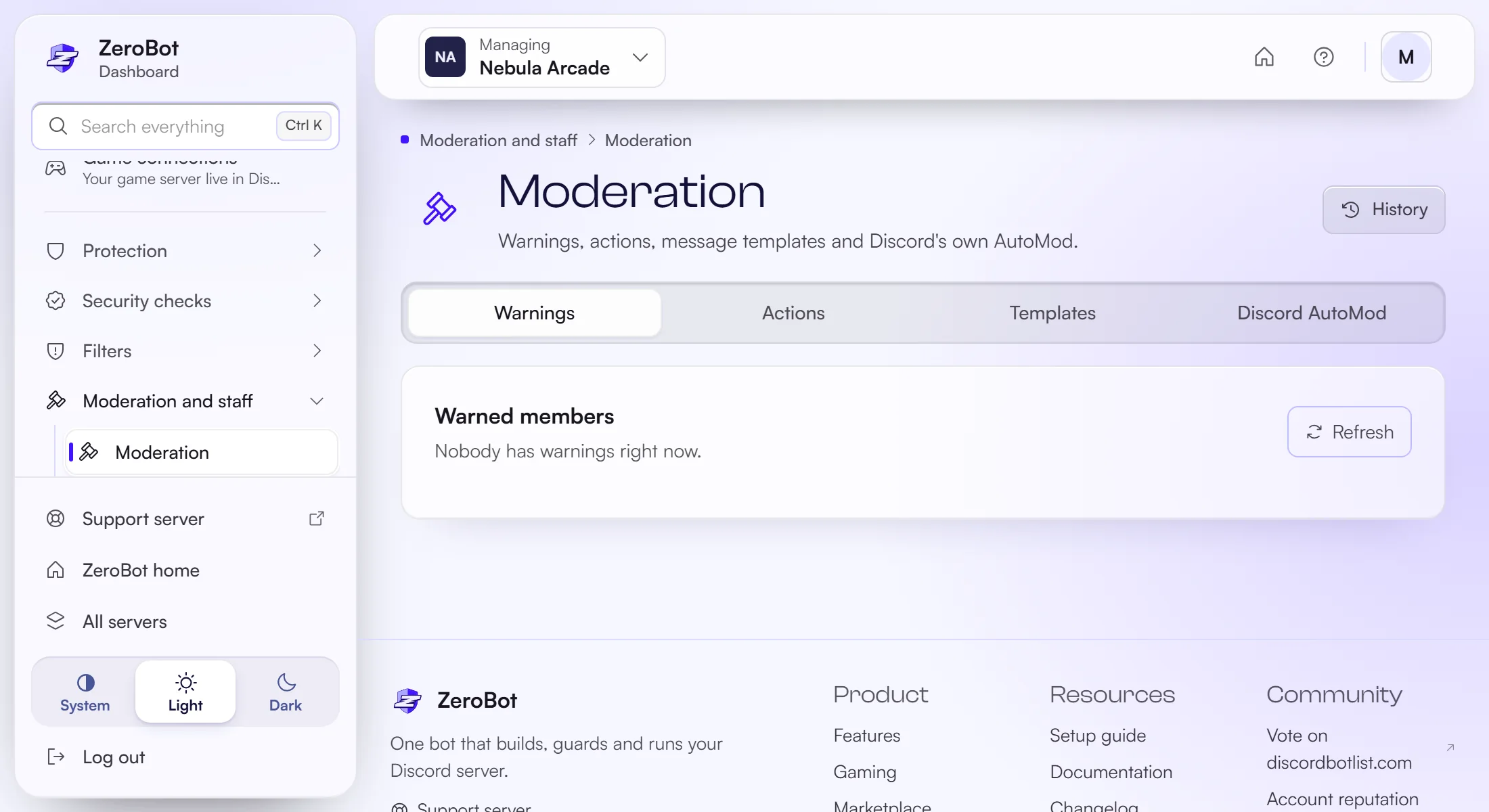
- Moderation in the sidebar, under Moderation and staff
- Warnings, actions, templates and Discord's own AutoMod
Common tasks
See a member's warnings
- Open Moderation and staff, then Moderation.
- Warnings lists every member with a warning.
Keep a record of every punishment
- Open Punishments and pick a forum channel.
- Every ban, kick, timeout and warning gets its own post. Staff reply with the proof.
Log edits, deletes and bans
- Open Logs.
- Use Set channel for all types.
- Switch off the events you don't need.
Let banned members appeal
- Open Ban appeals and switch it on.
- Pick the staff channel appeals land in.
- Copy the appeal link into your rules or ban message.
Prefix commands
Every moderation command below also works in chat with your server's prefix: ! unless you set your own on the Custom commands page. They use the same permissions, Command access rules, cases and logs as the slash commands.
!mute <user> <duration> [reason]- Times a member out, from 5 seconds up to 28 days. Also: !timeout, !tm, !m
!unmute <user> [reason]- Ends a timeout now. Also: !untimeout
!warn <user> <reason>- Warns a member. The warning is saved with a case number. Also: !w
!warnings <user>- Shows a member's active warnings and their case numbers.
!unwarn [user] <case>- Takes back one warning by its case number.
!kick <user> [reason]- Removes a member. They can join again with an invite. Also: !k
!ban <user> [duration] [reason]- Bans a member, for good or for a while (7d, 30d). Also: !b
!unban <id or name> [reason]- Lifts a ban by user id or username.
!purge <1-100> [user]- Deletes up to 100 recent messages here, optionally from one member. Also: !clear
!slowmode <seconds|off> [#channel]- Sets slowmode in this or another channel, or turns it off.
!lock [#channel] [reason]- Stops @everyone writing in this or another channel.
!unlock [#channel] [reason]- Opens the channel again, exactly as it was.
!help- Lists these commands with your prefix.
Durations: 30s, 10m, 2h, 1d, 1w. A user is a mention, a user id or their exact username. ZeroBot reacts with a tick when it worked, or with a cross and the reason when it did not. A command you switch off on the Command access page stays silent. Or reply to a message and leave the user out: the author of that message is the user, so !mute 30m test sent as a reply mutes them for 30 minutes. A mention or id still wins.
Common problems
- The log channel stays empty.
- Check that a channel is set for those events and that ZeroBot can see that channel and send messages in it.
- A moderator can't press Approve on an appeal.
- Only members with Ban Members, or the staff role picked on Ban appeals, can decide appeals.
Every page in this topic
- ModerationOpen
Warnings, actions and templates
More detail
Warn, time out, kick and ban from the browser, and see every member's warnings in one list. Switch on message reports here: members right-click a message, Apps, Report message, and the report lands in your staff channel. With the AI mod assistant on, each report also gets a short neutral summary of up to 30 messages around it, the rule it likely breaks, the member's record and a suggested step; staff decide and the AI never acts. It sees labels instead of names, with ids and links removed. 10 AI summaries a day free, 100 with Premium.
- LogsOpen
Audit-style event logs
More detail
Pick which events are logged (messages, roles, bans, joins and 30 more) and which channel each one goes to.
- PunishmentsOpen
Every punishment filed as a case
More detail
Every ban, kick, timeout and warning files its own post in a forum. Staff only reply with the proof. The page lists the latest cases.
- Staff inboxOpen
One inbox for staff: reports, flags, appeals and requests, claimed so nobody handles one twice
- Member profilesOpen
Everything about one member on one page
More detail
Search a member and see everything on one page: account age, joins and leaves, who invited them, level, activity, warnings, cases, tickets, alt-account signals and private staff notes. The AI briefing sums it up from those records only: 5 a day free, 50 with Premium.
- Ban appealsOpen
A web form for banned members, decided by staff
More detail
A web page for people banned from your server. They sign in with Discord (it only reads their name and id, and opens nothing else), the bot checks the ban is real, and they answer why they were banned, why they should be unbanned and up to five questions of your own. The appeal lands in your staff channel with Approve (lifts the ban), Deny (with an optional reason) and Discuss (a staff thread). Only Ban Members or your chosen staff role can press them. One open appeal per person, and a wait you choose after a denial. They see the answer on the same page, with your invite if approved; nobody gets a DM. Copy the appeal link into your rules or ban message.
- Ghost ping alertsOpen
Who pinged and then deleted
- Command permissionsOpen
Who may use each command, staff-only ! commands, and the moderation commands' settings
- Staff promotionsOpen
Staff move up a rank after weeks of steady, good work
More detail
A ladder of staff roles, lowest first, and what each step up takes: days in the rank, tickets handled, punishments, active days, messages, voice minutes, an average ticket rating and no recent strikes. Activity counts from the day someone entered their rank, with a daily limit per kind. A ticket counts once, never for a ticket someone opened themselves or never wrote in, and a punishment only after it has stood for 48 hours. Every 15 minutes the bot promotes whoever met everything (Automatic) or posts a proposal with Approve and Decline (Approve first). A role with Administrator, Manage Server, Manage Roles, Manage Channels, Manage Webhooks or Ban Members is never given automatically. Staff see their progress with /promotion progress. Nobody gets a DM. Free: one ladder of 3 steps, Automatic. Premium: up to 10 ladders of 25 steps, Approve first and inactivity warnings.
- Daily staff reportOpen
One card a day for staff: the night, what waits, what ZeroBot did