Where to find it
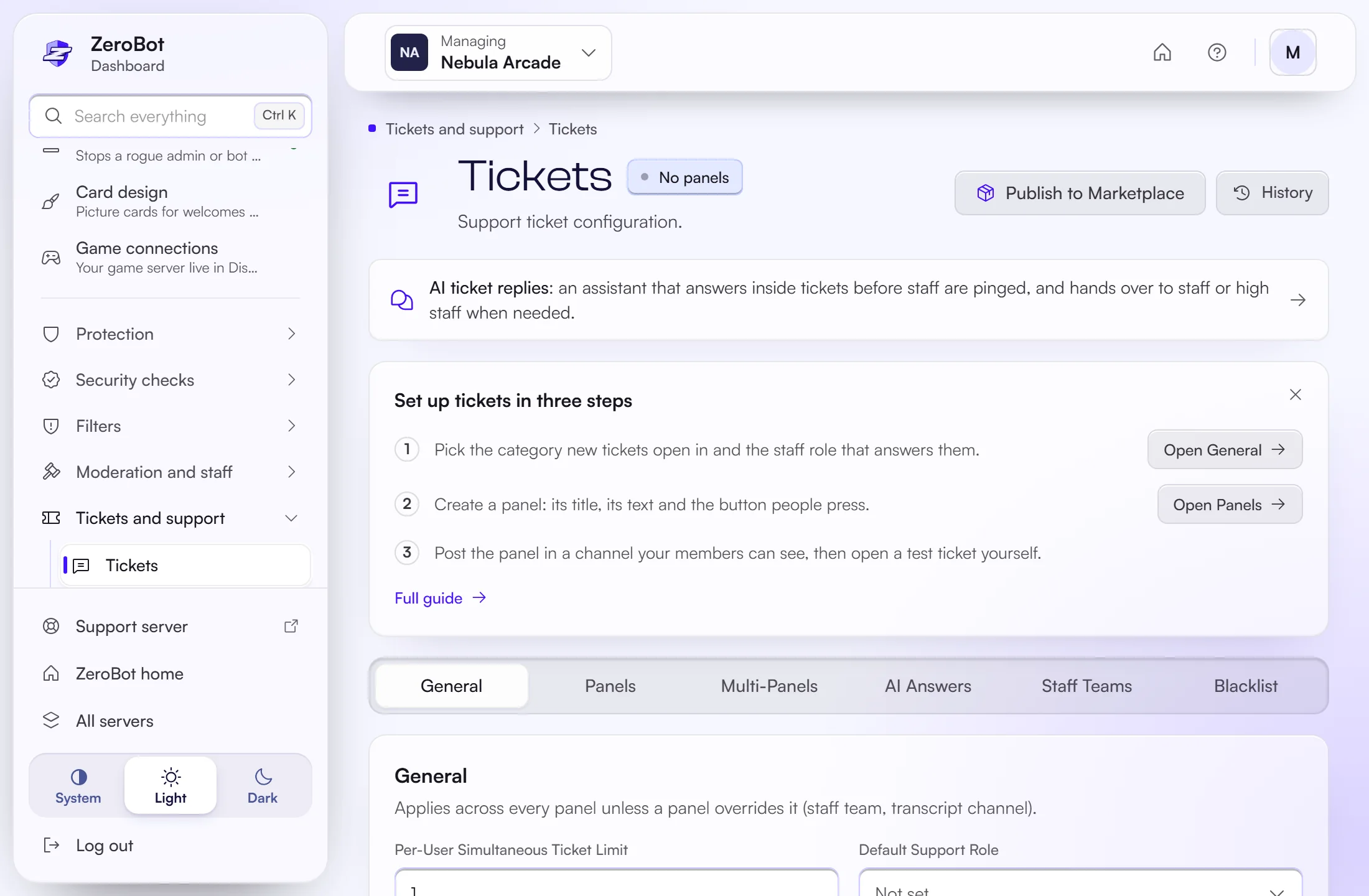
- Tickets in the sidebar, under Tickets and support
- Panels: the messages members press to open a ticket
- Staff Teams: who can see tickets
Common tasks
Make your first ticket panel
- On General, pick the ticket category and the default support role.
- On Panels, create a panel: its title, text and button.
- Post it in a channel members can see, then open a test ticket yourself.
Let only staff see tickets
- Open the Staff Teams tab.
- Add your staff roles to a team. Only those roles see the tickets.
Let the AI answer first
- Open AI ticket replies and pick the panels it works on.
- Staff are pinged once, with a summary, when a member asks for a person.
Answer common questions in chat
- Open Auto replies and add an entry: trigger phrases and the answer.
- Type any message into the test box to see which entry would answer.
Common problems
- I changed a panel but Discord still shows the old one.
- Panels are posted messages. Press Post or Resend on the panel to put the new version up.
- A member can't open a ticket.
- Check the Blacklist tab, and the per-user ticket limit on General. It is 1 by default.
- The ticket button shows a form I don't want.
- Open the panel under Tickets and switch off Ask questions before opening, or type /ticket form ask:False in Discord. Tickets then open in one click. Switch it on again to ask up to 5 questions of your own.
Every page in this topic
- TicketsOpen
Panels, teams, blacklist
More detail
Build ticket panels (a button or a dropdown of categories), choose who can see tickets through staff teams, and block people from opening them.
- Ticket toolsOpen
Canned replies, notes, transfers, SLA, opening hours and tags for your staff
- Auto repliesOpen
Common questions answered right in chat
More detail
An FAQ that answers in chat. When a member asks something common in your chosen channels, like "whats the ip?", "ip pls", "how do i join" or "wie ist die ip", the bot replies to their message with your answer, as text or a small card, without pinging them. Each entry has a title, trigger phrases and the answer; {ip} and {port} come from Game server status, and {server} and {user} work too. Short forms, typos and questions in German, French or Spanish are understood, and normal chat that only mentions a word ("the ip drama", "ipad") is ignored: when in doubt it stays silent. The same answer comes at most once per channel per cooldown (2 minutes by default), and not while its last answer is still among the last 10 messages. Optional AI matching asks the AI only about questions the triggers missed, and answers only when it is sure. Test any message on the page to see which entry would answer and why, start from templates for Minecraft servers and communities, and see answers per entry this week. The entries live in your server knowledge, which the ticket AI reads too. 15 entries and 50 AI checks a day free, 100 entries and 1,000 checks with Premium. Never a DM.
- AI ticket repliesOpen
An AI that answers in tickets before staff are pinged
More detail
An AI first responder inside tickets. On the panels you pick, a new ticket does not ping staff: the assistant answers from your server knowledge and ticket notes, and checks what the bot can see about the member (their roles and open cases). Every reply has This solved it and I need a staff member. It pings staff, or high staff for purchases, refunds, appeals and hacked accounts, once, with a short summary, and stops when staff write, claim or press Take over. Keyword topics hand a ticket over by rule. Try any message in the test box first. 30 AI replies a day free, 500 with Premium; after that tickets ping staff at once.
- Ask ZeroBotOpen
Members ask, ZeroBot answers in one channel from your server's info
- Ticket historyOpen
Every ticket, searchable, with full transcripts
- Ticket statsOpen
Response times, SLA, ratings and the busiest hours